 Private Play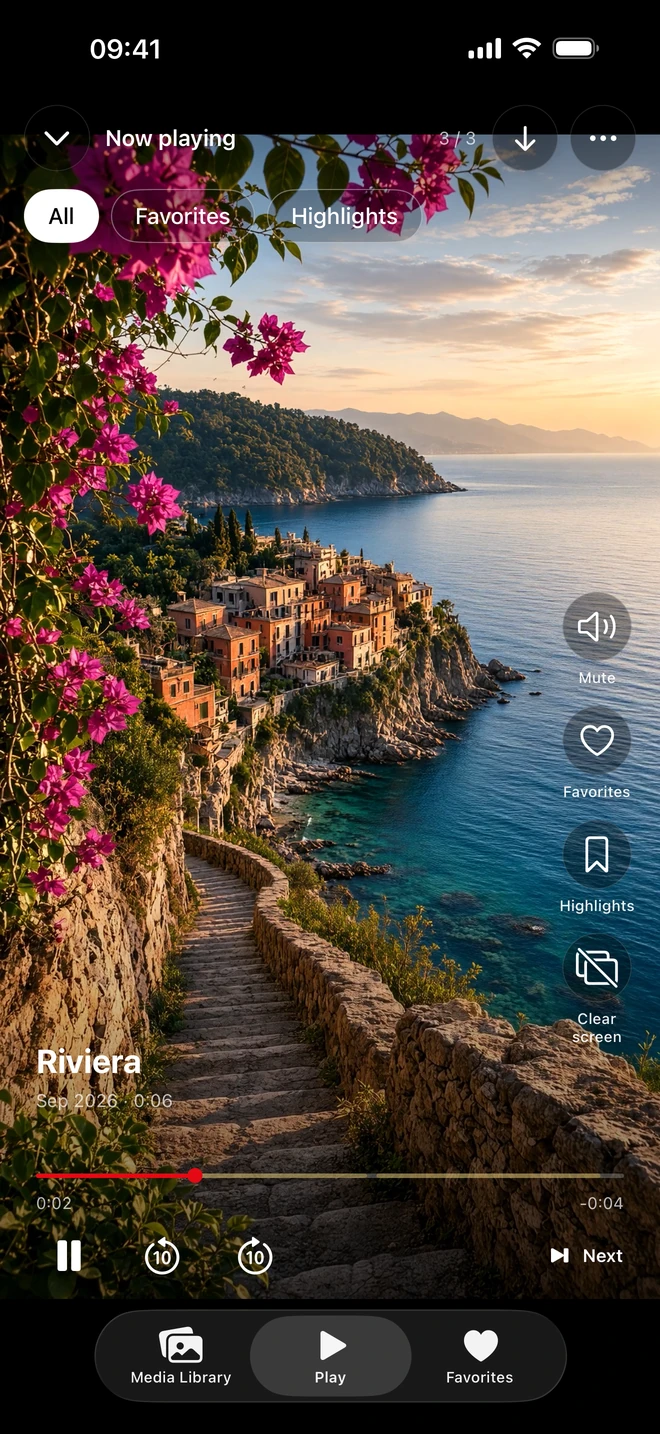
Choose the connection that fits your server
| Source | How to connect |
|---|---|
| Synology / DS file | Configure your server in DS file and make its files available through the iOS Files integration. Choose that source when importing. |
| SMB share | Connect to the share in Apple's Files app, then use the Files source in Private Play. |
| WebDAV server | Set up a WebDAV connection directly in Private Play with your server address and credentials. |
For SMB, Private Play uses Files integration. Have your server address and read access ready before downloading.
Download first, then watch offline
- Connect your iPhone to a network that can reach your NAS or WebDAV server. Confirm that your account can read the media you want.
- Open the configured source in Private Play and select files or folders to download.
- Wait for the download and import to complete. Allow enough free storage on your iPhone for the selected media.
- Open a downloaded video locally. You can now view the imported collection offline and save favorite ranges as Highlights.
The workflow downloads local copies; it does not stream videos from your server. The source files remain on the NAS, and Private Play does not upload your library back to it.
A library for the videos you want to revisit
Swipe vertically between imported photos and videos, mark Favorites, or use Shuffle. Highlights save a video's start and end positions without making another copy of the video. Download the media you need before a journey or before leaving your server's network.
If a source or download is unavailable
Check server reachability, the account's read permissions, available iPhone storage and whether the source appears in Files. A disconnected NAS cannot supply new downloads. For problems opening a downloaded file, contact Support with the file type and the steps that led to the problem; do not send private media.