 Private Play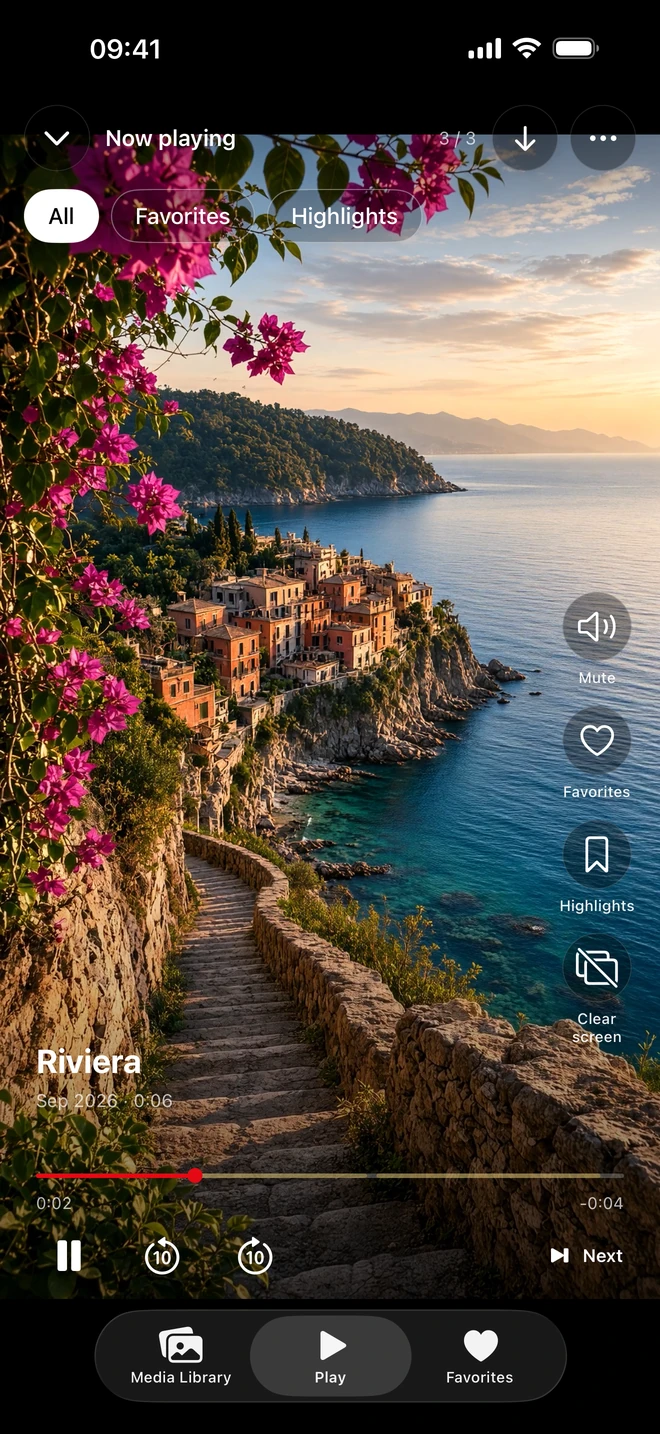
Keep it in Photos, or build a viewing collection?
| Your goal | A suitable starting point |
|---|---|
| Hide selected items while keeping them in Photos | Use the Hidden album. On iOS 16 or later it is locked by default. |
| Browse a separate collection of your own videos | Import selected media into Private Play for full-screen swiping, Favorites and Shuffle. |
| Return to short moments inside longer videos | Save time ranges as Highlights in Private Play. |
| Keep everything available across your Apple devices | Review your iCloud Photos settings. Private Play's library is local to your iPhone, not a hosted cloud library. |
Apple's Hidden album remains part of Photos. With iCloud Photos enabled, hidden status follows the media across your devices. Private Play instead imports a separate copy into its encrypted on-device library; its optional app lock uses Face ID, Touch ID or the device passcode.
Importing does not hide the original
- Start with a few videos you already have a safe copy of. Import them from Photos or Files into Private Play.
- Wait for the import to finish, then open the imported videos and check that they play.
- Check that Private Play's app lock is enabled if you want device authentication when returning to the library.
- Review the originals in Photos separately. Importing does not hide, move or delete them.
Avoid deleting originals just to test a new workflow. If you later choose to remove anything from Photos, first understand your iCloud Photos settings and keep an independent copy. A separate library can use additional iPhone storage.
Plan for offline access and recovery
Fully imported or downloaded media can play offline in Private Play. Viewing and adding media require active Monthly or Lifetime access; existing vault items remain exportable to Photos without Pro. App purchases, restoring purchases and new network imports need connectivity. Encryption and an app lock are not a backup: keep independent copies before deleting the app or replacing your iPhone. This comparison describes workflow differences, not a security audit or a claim that one option is universally safer.