 Private Play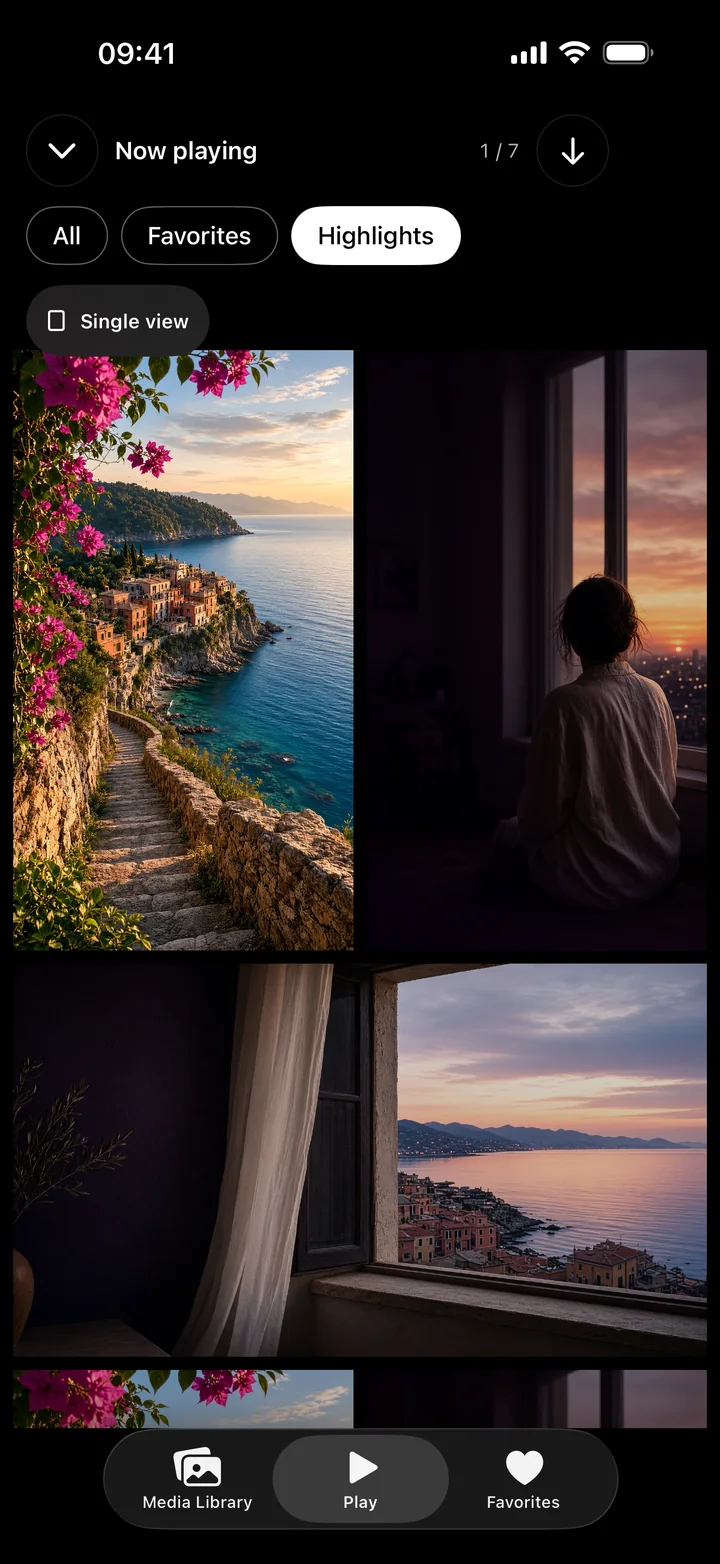
Choose what you want to revisit
| What matters to you | Use | What is saved |
|---|---|---|
| The whole photo or video | Favorites | A favorite selection for the library item. |
| A particular part of a video | Highlights | The start and end of a range in the source library video. |
| Several moments in one long video | Multiple Highlights | Separate ranges that refer to the same library video. |
| A standalone short file to send or edit elsewhere | A separate video-editing workflow | Saving a Highlight does not export a new clip. |
For example, favorite a full performance if you want to return to the whole recording. Save a Highlight for one passage you often replay. This is an example workflow, not a claim about an automatic selection feature: you choose the range yourself.
Save and check a Highlight
- Open an imported video in Private Play, then open the Highlight editor.
- Adjust the beginning and end of the range you want to keep.
- Preview the range and refine its boundaries if needed.
- Save it, then return to it in the Highlights grid. Add another range if a different moment is also worth keeping.
The grid lets you revisit saved moments side by side in a loop. Use the full-screen player when you want to watch a whole item, and Favorites or Shuffle when you want to browse your collection again.
Keep the source video
A Highlight does not duplicate or re-encode the video. It depends on the source video remaining in Private Play's library, so do not treat a saved range as an independent backup. Importing from Photos leaves the Photos original untouched, but that original and the imported library video are separate copies. Keep independent copies of important media before removing anything.
Try a small collection first
Import a few videos, mark the whole items you care about as Favorites, and save one or two ranges in each longer video. Fully imported or downloaded media can play offline. Viewing and adding media require active access; existing vault items remain exportable to Photos without Pro. If you need a separate edited clip, use a video editor rather than expecting Highlights to create one.